Wix Integration
Connect TrolleyShield to your Wix site to protect your native Wix forms with AI. Every submission to your Wix forms is analyzed in real time. Qualified leads flow into your Wix Contacts, spam is moved to your spam folder, and you get a full lead dashboard right inside your Wix dashboard.
No code, no Velo, and no changes to the forms you already built. You install the app once and connect it with a single key.
What it does
- Filters every submission. Each native Wix form submission is classified: legitimate lead, spam, bot, phishing, or irrelevant.
- Syncs qualified leads to Wix Contacts. Only clean, real leads reach your Contacts, tagged with a "TrolleyShield" label and enriched with the lead's intent and marketing attribution.
- Moves spam to the spam folder. Submissions classified as spam or bots are reported to your site's Spam tab automatically, keeping your main inbox clean.
- Captures marketing attribution. Tracks where each lead came from (UTM parameters and the Google click ID) without you adding anything to your forms.
- Gives you a dashboard inside Wix. See submission stats, recent submissions with full AI detail, and set per-form context, all from a TrolleyShield page in your Wix dashboard.
Requirements
- A paid TrolleyShield plan with API access (Form Pro, Form Business, or any Call Shield plan)
- A Wix site with Wix Forms
Setup
Setup starts in TrolleyShield and finishes in Wix. Grab your API key in TrolleyShield first, then install and paste it in.
1. Start in TrolleyShield
- In TrolleyShield, go to Settings → Integrations → Wix
- Copy your API key (keep this tab open, you will need the key in a moment)
- Click Install on Wix
2. Finish in Wix
- A Wix marketplace page opens. Click to confirm and add the TrolleyShield app
- Choose the site you want to protect
- Click Open app to load the TrolleyShield page in your Wix account
- Paste the API key you copied from TrolleyShield
- Click Connect
That is the entire connection step. Once linked, your forms are protected immediately. There is nothing to add to your forms.
There is no login or password to enter inside Wix. Your TrolleyShield API key links the site to your account, the same way it does for the WordPress plugin.
The Wix dashboard
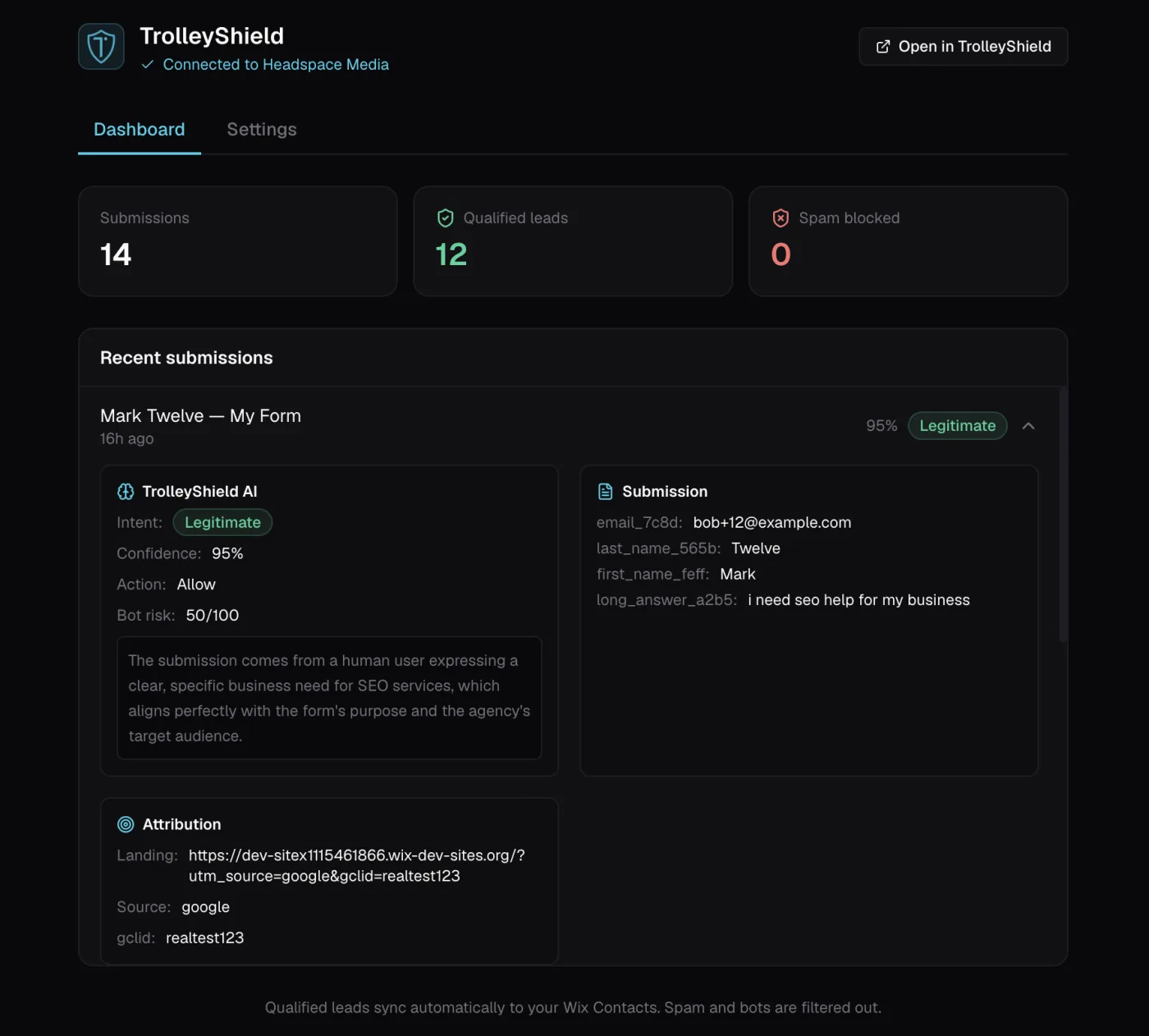
After connecting, the TrolleyShield page in your Wix dashboard has two tabs.
Dashboard tab
- Stats: total submissions, qualified leads, and spam blocked for this site.
- Recent submissions: each row shows the lead's name, the form, the time, and the AI verdict. Click a row to expand the full detail:
- AI verdict: intent, confidence, recommended action, bot risk score, reasoning, and matched service tags
- Submission: the form field values
- IP intelligence: location and network flags (VPN, proxy, Tor, hosting)
- Attribution: landing page, referrer, UTM parameters, and click IDs
- For qualified leads, a View in Wix Contacts link opens that lead directly in your Wix Contacts.
Settings tab
The Settings tab lists every form on your site. For each form you can turn analysis on or off, and set the classification context.
Turn analysis on or off per form
Each form has an on/off switch to the left of its name. Turn it off to have TrolleyShield ignore that form's submissions entirely, no analysis, no Contact sync, no spam filtering. Turn it back on any time. New forms are analyzed by default.
Use this to exclude forms you do not want scored, for example an internal form, a newsletter signup, or a survey.
Set the context
Context tells the AI what a legitimate submission looks like for that specific form, which sharply improves accuracy.
- Click a form to expand it
- Enter a short description, for example: "Quote request form for a hardware shop. Legitimate submissions ask about products, pricing, tool sharpening, or store hours."
- Click Save
Click Sync forms any time to refresh the list (for example, right after creating a new form in Wix).
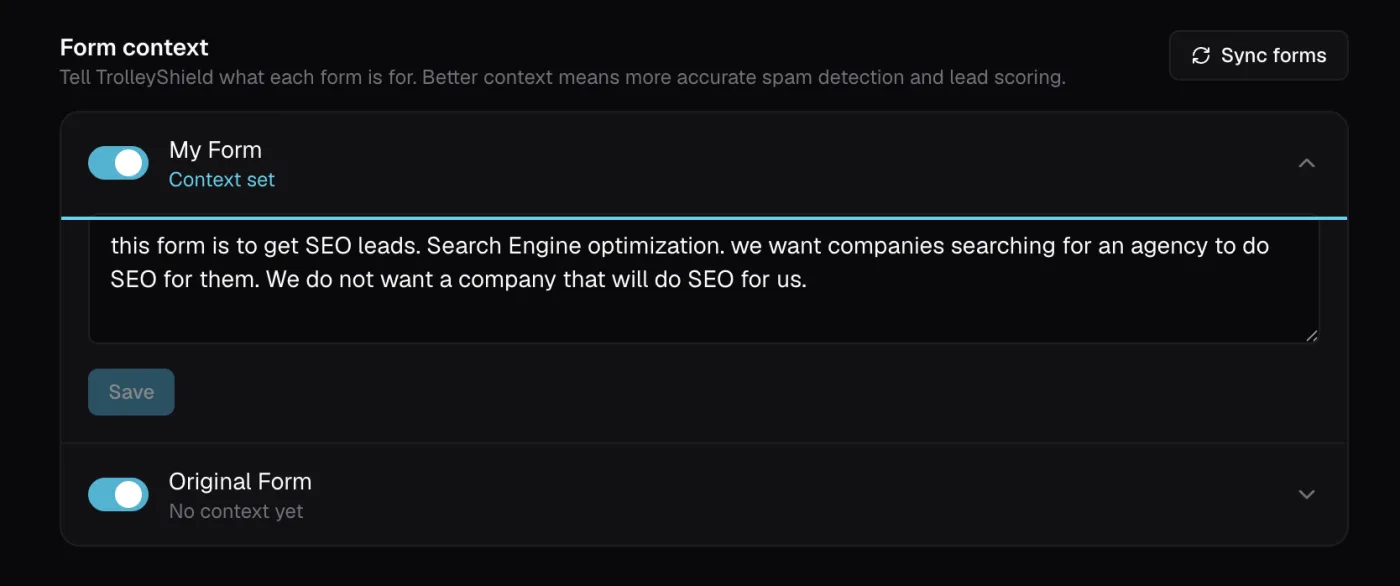
A form with no context is judged on general signals only. A form with context lets the AI tell a real inquiry from an off-topic one. For a niche business this is the difference between a clean inbox and false positives.
How submissions are handled
When someone submits one of your native Wix forms:
| AI verdict | What happens in Wix |
|---|---|
| Legitimate | Added to your Wix Contacts, labeled "TrolleyShield", and enriched with intent and attribution |
| Spam / Bot / Phishing | Reported to your Spam tab, kept out of your main inbox and Contacts |
| Irrelevant / Suspicious | Left in your submissions inbox for you to review (not synced to Contacts) |
TrolleyShield governs what reaches your Contacts and which submissions are marked spam. Because Wix saves every submission to its own list first, junk may still appear briefly in your raw submissions list before it is moved to Spam.
Lead enrichment in Wix Contacts
Qualified leads are written to your Wix Contacts with three custom fields, so you can see the lead quality, the reasoning, and the marketing source right in your CRM:
| Field | What it holds | Example |
|---|---|---|
| TS Intent | The verdict and confidence | legitimate (92%) |
| TS Analysis | A one-line explanation of the verdict | Genuine pricing inquiry with valid contact details. |
| TS Attribution | The lead's marketing source, summarized | source=google · medium=cpc · gclid=abc123 |
These three fields are created automatically on your site when you connect the app. A TrolleyShield label is also applied to every synced contact, so you can filter your Contacts list to just the leads TrolleyShield approved.
Returning leads (same email) update their existing contact rather than creating a duplicate.
Want the verdict to appear right in your native Wix submissions table, not just on the contact? In the Wix form editor, add fields labeled TS Intent, TS Analysis, and/or TS Attribution to the form. TrolleyShield writes the verdict into whichever of those you add, so it shows as columns alongside the submission. This is optional. The contact enrichment above and the in-Wix dashboard work either way.
Marketing attribution
TrolleyShield captures where each lead came from automatically. When a visitor lands on your site with tracking parameters in the URL (such as ?utm_source=google&gclid=...), those values are captured and attached to the lead when they submit a form.
This works out of the box once the app is installed. Native Wix forms do not normally pass these values along, so this fills an important gap for measuring which campaigns drive real leads.
Attribution works on its own, but it is matched to each lead by email, which is not always reliable. For the most dependable capture, add the TS Attribution field to your form. TrolleyShield registers this field in the Wix form builder for you, so in the form editor it appears as a ready-made field to drag in (under Contacts in the Add field panel).
Once added, TrolleyShield writes the captured attribution directly into the submission, so it no longer depends on an email match. This is the most reliable way to ensure the Google click ID (gclid) reaches TrolleyShield, which matters when you have Google Ads connected: it is what fires your offline conversions for qualified leads.
How it fits your site
The app sits invisibly behind the native Wix forms you already built. Nothing changes for your visitors, no new forms to add, no embed code. Every submission is analyzed, and qualified leads flow into your Wix Contacts.
Usage and billing
- Each form analysis counts toward your plan's form analyses limit
- Paid plans allow overages (billed automatically)
- Trial accounts are hard-blocked at their limits
Disconnecting
Go to Settings → Integrations → Wix in TrolleyShield and click Disconnect. A confirmation explains exactly what happens.
Disconnecting stops new submission analysis, lead syncing to Wix Contacts, and the attribution script running on your site.
Disconnecting does not uninstall the app from Wix, delete your contacts, remove the "TrolleyShield" label, or remove the TS Intent / TS Analysis / TS Attribution fields. Past submission history is kept.
To fully remove the app, also uninstall it from Apps in your Wix dashboard. You can reconnect any time by pasting your API key back into the TrolleyShield page in Wix.
Troubleshooting
The TrolleyShield page asks for a key but mine is rejected
- Make sure you copied the full key from Settings → Integrations → Wix in TrolleyShield
- The key must belong to an account on a paid plan with API access
My forms are not listed in the Settings tab
- Click Sync forms to refresh the list
- Only native Wix Forms appear. If you just created a form, give it a moment and sync again
A form's submissions are not being analyzed
- Check the on/off switch next to that form in the Settings tab. If it is off, TrolleyShield ignores that form. Turn it on and submit again
Spam still shows in my Wix submissions list
- This is expected. Wix stores every submission first. TrolleyShield moves spam to your Spam tab and keeps it out of Contacts, but it may appear briefly in the raw submissions list
A real lead was marked irrelevant
- Add form context in the Settings tab so the AI knows what a real submission looks like for that form, then submit again
- Irrelevant submissions are left in your inbox for review and are not deleted
Attribution is missing on a lead
- Attribution is only captured when the visitor arrives with tracking parameters in the URL. A direct visit with no
utm_*or click ID has nothing to capture - Make sure the TrolleyShield app is installed and active on the site